package.json Overrides — Fix npm Peer Dependency Conflicts
I discovered the package.json “overrides” feature because it saved my build after an Angular upgrade.
The problem
I updated Angular and several dependencies to stay current. The Angular update worked, but subsequent builds failed due to peer dependency conflicts from transitive packages. The first problematic package I found was @xmldom, pulled in by osmtogeojson.
Analysis
Start by finding who depends on the problematic package:
npm ls @xmldom/xmldomThe dependency tree often points to packages you don’t use directly. In my case, osmtogeojson introduced a conflicting @xmldom version.
The solution
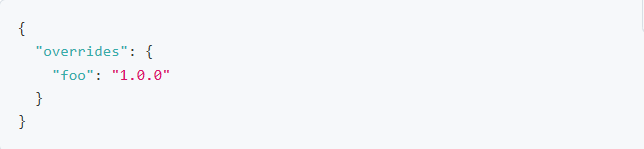
npm’s overrides lets you force specific dependency versions for sub-dependencies. The docs describe the syntax well, so I won’t repeat them verbatim — instead, here’s my working override that fixed the build:
"overrides": {
    "ngx-indexed-db": {
        "@angular/common": "$@angular/common",
        "@angular/core": "$@angular/core"
    },
    "ngx-markdown": {
        "@angular/common": "$@angular/common",
        "@angular/core": "$@angular/core",
        "@angular/platform-browser": "$@angular/platform-browser"
    },
    "osmtogeojson": {
        "@xmldom/xmldom": "^0.9.8"
    }
}- Use the
$package/namevariable to adopt the installed version (e.g.,$@angular/common). - For packages that require a specific patched version, set an explicit semver string (as I did for
osmtogeojson→@xmldom).
To find a compatible version, check the dependency’s package.json (for example, the osmtogeojson repo) and copy a suitable version into your overrides.
Why this helps
- Resolves peer dependency conflicts that break builds after framework upgrades.
- Lets you stay current for security and bug fixes without forking or patching libraries.
- Works well when the package code is actually compatible with the newer dependency even if its declared range is strict.
Caveats and maintenance
- Monitor overrides: maintainers may update their packages and your overrides can become stale.
- Prefer minimal overrides scoped to the specific nested package rather than broad global overrides.
- Test thoroughly after adding overrides, since forced versions can surface runtime incompatibilities.
Technical notes & best practices
- Confirm npm client support: the
overridesfield is supported in modern npm releases (npm 8.x+). Verify withnpm -vbefore relying on this feature. - Reinstall cleanly after changes: edit
package.json, then reinstall so the override is applied consistently. Example workflows:
Unix/macOS:
rm -rf node_modules
rm package-lock.json    # optional, only if you want a fresh lock resolution
npm install
Windows (PowerShell):
Remove-Item -Recurse -Force node_modules
Remove-Item -Force package-lock.json    # optional
npm install- Trace reasons a package is present: use
npm why <pkg>(ornpm ls <pkg>) to see who depends on a package. - Lockfile and CI: overrides affect resolution and will be recorded in
package-lock.json(or other lockfiles). Commit the updated lockfile and verify installs in CI. - Testing: run unit, integration and smoke tests after forcing sub-dependency versions — successful install doesn’t guarantee runtime compatibility.
- Scope & minimalism: prefer targeted overrides (single nested package) rather than broad overrides for many packages.
- Other package managers: Yarn uses
resolutionsand pnpm supportsoverrides/pnpm.overrides— note differences if readers use a different manager. - Peer dependency metadata:
overrideschange the installed versions in the dependency graph but do not change a package’s declaredpeerDependencies; you may still need to satisfy top-level peer requirements for correct behavior.
Conclusion
Reading error traces is a practical skill. When npm points to transitive packages, trace the dependency tree, apply a minimal override when appropriate, and retest. Stay calm, read traces deliberately, and use the overrides feature to keep builds moving while you track upstream fixes.